
|
Version |
Changelog |
Date |
Download |
|---|---|---|---|
|
1.0.0 |
First release |
||
|
2.0.0 |
|
|
|
|
2.1.0 |
|
|
Overview
The HLS Meta GPIO app plays an HLS audio stream on a Barix LX400 and automatically operates relay outputs (GPOs) in response to markers carried inside that stream. It is designed for broadcast and ad‑insertion workflows where a downstream device — a mixer, a local ad player, a "now playing" sign, or a station‑automation input — needs to know, in real time, when the main program has entered an advertisement break (or a specific point in the stream) and when it has returned to normal programming.
The app continuously reads the stream's own signalling. Two kinds of in‑stream markers are understood:
-
SCTE‑35 cue markers carried in the stream's playlist
-
ID3 metadata embedded in the audio itself.
When either marker indicates that an ad break has started, the app closes the configured relay; when the marker indicates the break has ended, it opens the relay again.
Markers are configurable per each relay with specific strings to control GPO closures and GPO openings with possibility to toggle the GPO after a specified time.
The distinguishing feature of the app is that relay switching is aligned with the audio you actually hear. The stream is buffered before it reaches the loudspeaker output, so a naïve trigger would fire several seconds before the corresponding audio was audible. Instead, the app measures its own playout delay and holds each relay change until the exact moment the marked audio reaches the output. The result is a relay transition that coincides with the audible start and end of the break, not with its arrival over the network.
Front‑panel status LEDs indicate the play state and whether a break is currently active, so an operator can confirm at a glance that the app is running and tracking correctly.
Compatible Hardware
The HLS Meta GPIO app runs on:
-
Barix LX400 — full support. The LX400 provides the relay outputs (GPOs) that the app controls, the analog audio output used for monitoring, and the status LEDs used for indication.
The app requires the relay outputs of the LX400 to signal ad breaks. Devices without relay outputs are not suitable for this app.
The stream source can be any standard HLS stream that delivers AAC audio segments and carries ad‑break signalling as SCTE‑35 playlist cues, embedded ID3 metadata, or both. Both HTTP and HTTPS streams are supported.
Installation Process
Before you begin: make sure your LX400 is running a compatible Flexa firmware (version 2.3.3 or later). If the app package requires a newer firmware than the one installed, the device will offer to update during installation.
NOTE 1: If your LX400 is already running an application you must RESET TO DEFAULTS before proceeding and installing a new one.
NOTE 2: If your LX400 is registered in a management portal or has the Flexa Agent enabled on the HOME page, ensure it has no assigned application. If you can access the portal, assign this app there; otherwise, the portal’s assigned app will override the local configuration.
Step 1 — Open the device web interface
-
Point a web browser at the IP address of your LX400.
-
Log in with your device credentials.
Step 2 — Upload the app package
-
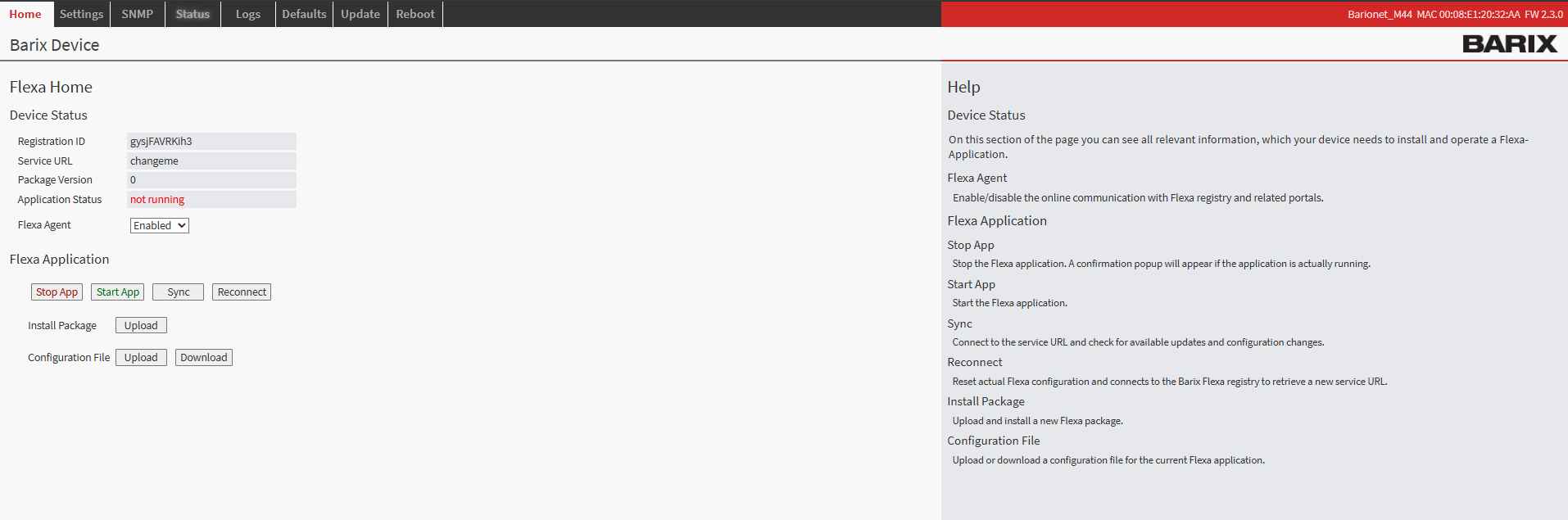
Open the Flexa app HOME page of the web interface.
-
Choose Upload and select the
hls-meta-gpio.zippackage file. -
Wait for the upload to complete. The device installs the app and adds a new configuration tab named HLS Meta GPIO.
Step 3 — Verify and configure
-
Confirm that the HLS Meta GPIO tab now appears in the interface.
-
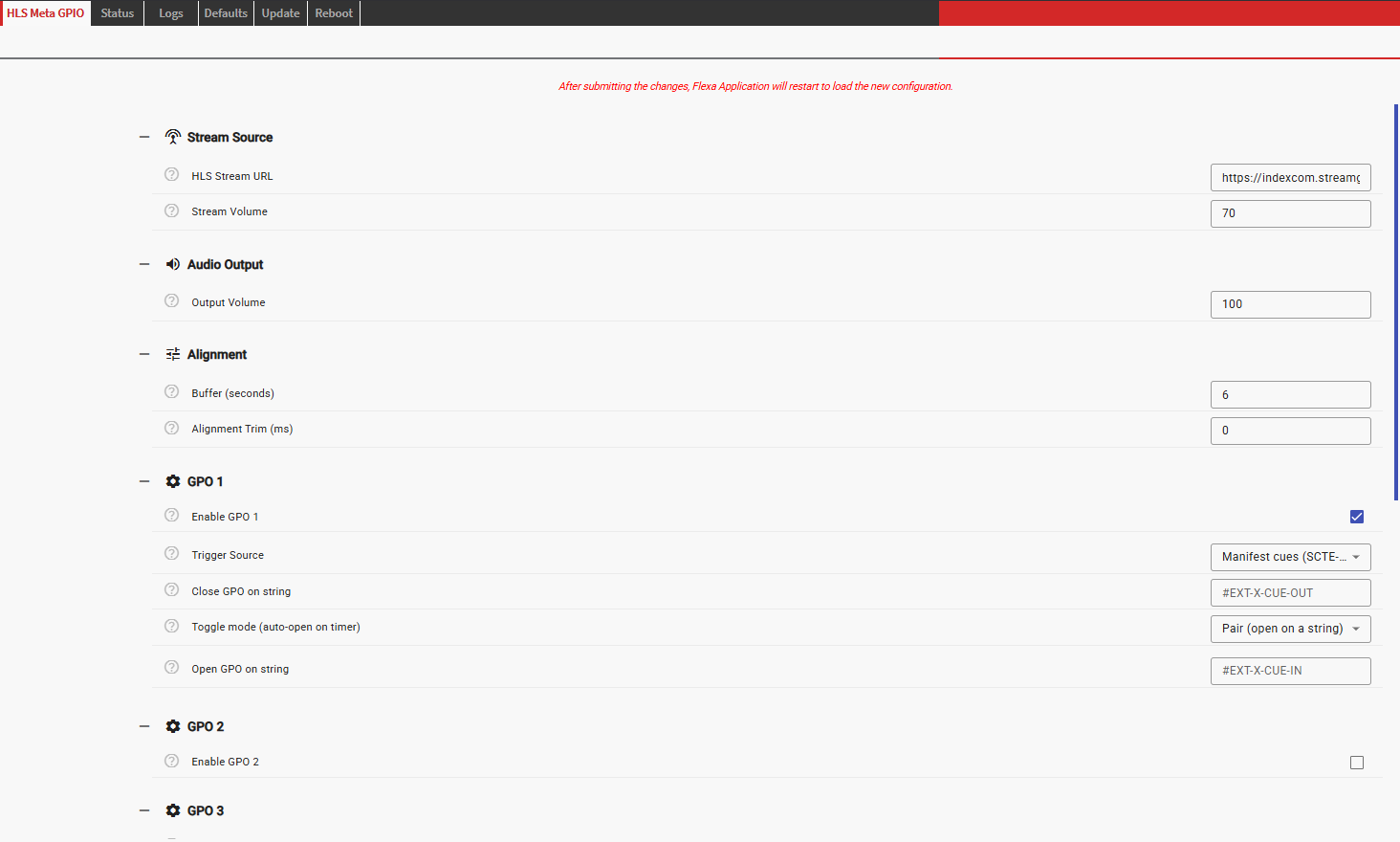
Open the tab and enter your configuration (see Configuration Overview below).
-
Save the form. The app starts automatically and restarts whenever you save new settings.
Configuration Overview
All settings are entered from the HLS Meta GPIO tab. The tab is divided into the sections described below. After changing any value, save the form to apply it — the app reloads its configuration and restarts each time you save.
Stream Source
Defines what the app plays and how loud the decoded stream is.
-
HLS Stream URL — the address of the HLS playlist (
.m3u8) to play. This may be a master playlist or a media playlist, over HTTP or HTTPS. This is the only mandatory field; until it is set, the app waits and the status LED shows a red slow blink. -
Stream Volume — a software gain applied to the decoded programme, on a scale of 0 to 100. Use this to trim the level of the stream itself.
Audio Output
-
Output Volume — the main output volume of the device, on a scale of 0 to 100. This sets the final loudness of the analog monitoring output, independently of the Stream Volume above. Set it to 100 for full output.
Alignment
-
Buffer (seconds) — how much audio the app holds between the network and the output, from 2 to 60 (default 6). This buffer is what lets the app ride through network dropouts: any interruption shorter than the buffer is inaudible and does not interrupt the relays. A larger value survives longer or flakier outages, at the cost of that much extra latency — the audio and the relay switching move further behind real time together, so they stay aligned with each other. Because HLS is already ~15–25 seconds behind the live edge, adding a few more seconds of buffer is usually a good trade for reliability. Notes: the effective buffer cannot exceed how much audio the stream's playlist makes available (typically a few tens of seconds); a larger buffer uses roughly 0.4 MB of memory per second and takes a little longer to fill at start‑up.
-
Alignment Trim (ms) — a fine adjustment, in milliseconds, applied to every relay switch relative to the audible audio. Leave it at 0 for automatic alignment. Enter a positive value to make relays switch later, or a negative value to make them switch earlier. This is intended only for small corrections to match a specific downstream device; the app already aligns to the audible audio on its own.
GPO 1 … GPO 8
There is one section per relay output. Each is independent and disabled by default — configure only the relays you need. When you enable a relay, the following fields appear:
-
Enable GPO n — turns this relay's trigger on. When off, the relay is left open and ignored.
-
Trigger Source — where to look for this relay's strings:
-
Manifest cues (SCTE‑35 / EXT‑X‑CUE) — the app matches your strings against the cue/ad tag lines in the playlist (for example
#EXT-X-CUE-OUT,#EXT-X-CUE-IN, SCTE‑35 or date‑range tags). -
ID3 in‑stream metadata — the app matches your strings against the text embedded in the audio segments (ID3 frame descriptions, their values, or a title).
-
-
Close GPO on string — the text that closes this relay. Whenever it appears in the selected source, the relay closes (aligned to audible audio). Matching is a simple "contains" test, so you can enter a whole tag (
#EXT-X-CUE-OUT) or just a distinctive fragment (CUE-OUT,AWBreak,Alpha). -
Toggle mode (auto‑open on timer) — chooses how the relay opens again:
-
Pair (open on a string) (default) — you also specify an Open GPO on string; the relay opens when that text appears in the source. Use this to bracket an event, e.g. close on
#EXT-X-CUE-OUTand open on#EXT-X-CUE-IN. -
Toggle (open on timer) — there is no open string. The relay opens automatically a set time after it closes. You specify Auto‑open after (seconds) between 1 and 3600. If the close string is seen again before the timer expires, the timer restarts.
-
Example — GPO 1 as a break‑duration contact: Source Manifest, Close on #EXT-X-CUE-OUT, Pair, Open on #EXT-X-CUE-IN. Example — GPO 2 as a fixed 30‑second pulse at each break start: Source Manifest, Close on #EXT-X-CUE-OUT, Toggle, Auto‑open after 30.
Syslog
Optional remote logging for diagnostics and record‑keeping.
-
Enable Syslog — turn remote logging on or off.
-
Syslog Host — the address of your syslog server (shown only when logging is enabled).
-
Syslog Port — the port of your syslog server (default 514).
When enabled, the app sends a log entry for every significant event, including each detected marker and each relay change, to your syslog server.
Ad break examples detected and captured in syslog:
Case 1 — SCTE-35 / manifest cue markers
GPO 1, pair mode: close on #EXT-X-CUE-OUT, open on #EXT-X-CUE-IN. One full ad break:
# --- break starts: cue-out marker detected in the playlist ---
MANIFEST playlist-20260722T094112Z_CueOut.aac TAG #EXT-X-CUE-OUT:48.043
GPO1 CLOSE scheduled in 5.99s  (manifest '#EXT-X-CUE-OUT' -> close @playlist-20260722T094112Z_CueOut.aac+0B)
GPO1=1 (CLOSED)  manifest '#EXT-X-CUE-OUT' -> close @playlist-20260722T094112Z_CueOut.aac+0B

# --- break ends: cue-in marker detected ---
MANIFEST playlist-20260722T094200Z.aac TAG #EXT-X-CUE-IN
GPO1 OPEN scheduled in 5.98s  (manifest '#EXT-X-CUE-IN' -> open @playlist-20260722T094200Z.aac+0B)
GPO1=0 (OPEN)  manifest '#EXT-X-CUE-IN' -> open @playlist-20260722T094200Z.aac+0B
Case 2 — ID3 in-stream metadata markers
GPO 2, pair mode. The ID3 … line shows the flattened tag content the app matched against:
# --- marker detected inside the audio segment (ID3 tag) ---
ID3 playlist-20260722T095429Z.aac off=0 enc | StreamS Live HTTP Encoder Service (v3.5.0.208) | ... | Tannhäuser: Overture
GPO2 CLOSE scheduled in 5.79s  (id3 'StreamS' -> close @playlist-20260722T095409Z.aac+0B)
GPO2=1 (CLOSED)  id3 'StreamS' -> close @playlist-20260722T095409Z.aac+0B

# --- return marker detected ---
GPO2 OPEN scheduled in 5.99s  (id3 'CABLE' -> open @playlist-20260722T095419Z.aac+0B)
GPO2=0 (OPEN)  id3 'CABLE' -> open @playlist-20260722T095419Z.aac+0B
How to read a cycle
Each marker produces three lines:
-
Detection —
MANIFEST … TAG …(SCTE-35) orID3 … off=N …(ID3): what was found in the stream, and where. -
… scheduled in X.XXs— the marker matched a close/open string; the relay change is deferred by ~the buffer (here ~6 s) so it lands exactly when that audio is audible. -
GPOn=1 (CLOSED)/GPOn=0 (OPEN)— the relay actually switched. The tail shows the trigger source (manifestvsid3), the matched string, and@segment+byteoffset(for ID3, the exact byte within the segment;+0Bfor manifest, which aligns to the segment start).
So the only difference between the two cases in syslog is the detection line (MANIFEST vs ID3) and the source tag in the reason (manifest '…' vs id3 '…') — the scheduling and open/close lines are identical.
Periodic health report. Once a minute the app also sends a single HEALTH line summarising the device and stream status, so you can monitor the unit from your syslog server. It contains:
-
cpu — CPU temperature (°C)
-
mem — memory in use (percentage and available/total)
-
disk — storage in use on the app partition (percentage and free/total)
-
net — active interface and link state, total bytes received/sent, current receive/send rate (kbps), and link_changes (how many times the network link has gone down/up since boot — a rising value indicates an unstable connection)
-
uptime — how long the device has been running
-
stream_reconnects — how many times the app has re‑established the stream since the device booted (a rising value indicates stream or network interruptions)
-
last_reconnect — the timestamp of the most recent reconnection, in UTC with a
Zsuffix (e.g.2026-07-22T09:33:06Z); showsneverif the stream has been stable since boot
Example:
HEALTH cpu=51.1C mem=15%used(avail=413MB/489MB) disk=7%used(free=6.0GB/6.4GB)
net=eth0(up) rx=1520.3MB tx=34.8MB rx_rate=159kbps tx_rate=5kbps link_changes=2
uptime=1d0h41m stream_reconnects=0 last_reconnect=never
The reconnection count and last‑reconnect time are counted since the device booted (they persist across an app restart but reset when the device is rebooted).
Operational Behavior
What closes and opens a relay
Each enabled relay is driven entirely by the strings you configured for it, matched against the source you chose:
-
Manifest source — the app reads the ad‑signalling tag lines in the playlist (cue‑out, cue‑in, SCTE‑35, date‑range and similar). Your close/open string is matched as a substring of those lines.
-
ID3 source — the app reads the text embedded in the audio segments and matches your close/open string against it.
The relay then behaves according to its mode:
-
Pair mode — the relay closes the moment the close string appears and stays closed until the open string appears, at which point it opens. This brackets an event exactly (for example, closed for the whole duration of an ad break between cue‑out and cue‑in).
-
Toggle mode — the relay closes when the close string first appears and then opens by itself after the configured number of seconds. There is no open string. If the close string appears again before the timer runs out, the timer is restarted. Use this for a fixed‑length pulse regardless of how the break ends.
Relays are fully independent: several can be closed at once, watching different sources or different strings, each opening on its own condition.
Alignment with audible audio
The app plays the stream with a short, fixed buffer between the network and the loudspeaker output — this buffer is what allows smooth, gap‑free playback. Because of it, a marker arrives from the network several seconds before the audio it belongs to is actually heard.
The app compensates for this automatically. It continuously measures how far behind the network the audible audio currently is, and when it encounters a marker it delays the relay change by exactly that amount, so each relay closes or opens at the instant the marked audio reaches the output. (In toggle mode, the auto‑open timer starts from that audible close moment.) The Alignment Trim setting lets you nudge this timing if a particular downstream device needs the switch slightly earlier or later, but no trim is needed for normal use.
Start‑up and reconnect
If the app starts — or the stream is reconnected after an interruption — while a pair‑mode relay's close condition is already in effect (for example, joining midway through an ad break), the app detects this from the current signalling and closes that relay immediately, so it reflects the true state of the programme rather than waiting for the next transition. Toggle‑mode relays fire on the next fresh appearance of their close string.
Recovery and network resilience
The app is self‑healing, and its resilience to bad network conditions has two layers:
-
Short interruptions are absorbed by the buffer. Any dropout, hiccup, or flaky‑link glitch shorter than the configured Buffer (seconds) is completely inaudible — playback continues from the buffer, and the relays are unaffected. This has been verified on hardware: with a 30‑second buffer, a 22‑second full network outage played through with no gap and no interruption; the same outage with a small buffer produced a short silence and a reconnect.
-
Longer outages trigger a clean reconnect. If the interruption outlasts the buffer, playback pauses and the app retries continuously, resuming on its own once the stream returns — no manual restart is needed. This has been verified against full outages from a few seconds up to ten minutes, and against a rapidly flapping link (repeated drops in quick succession); in every case the app recovered within a few seconds of connectivity returning, without leaking resources or getting stuck, and each relay was realigned to its correct state on reconnect. Relay states are held across the interruption rather than dropped.
To make the device more tolerant of a poor connection, raise the Buffer (seconds) value so that typical dropouts fall within it. When the app shuts down, it opens all of its relays.
Status LED indications
The LX400's two front LEDs report status at a glance:
|
LED |
Indication |
Meaning |
|---|---|---|
|
Status LED (LED 1) |
Green, solid |
Stream playing normally |
|
Status LED (LED 1) |
Green, fast blink |
Connecting or buffering |
|
Status LED (LED 1) |
Red, slow blink |
Stream lost, or no stream URL configured |
|
Trigger LED (LED 2) |
Red, solid |
At least one relay is currently closed |
|
Trigger LED (LED 2) |
Off |
All relays open |
Configuration Example
Two relays from one stream — a break contact and a start pulse
Goal: hold relay 1 closed for the whole duration of each advertisement break (to switch a downstream ad player), and give a separate 30‑second pulse on relay 2 at each break start (to trigger a one‑shot action).
Settings on the LX400:
-
Stream Source → HLS Stream URL:
<https://provider.example.com/hls/playlist.m3u8> -
Stream Source → Stream Volume:
70 -
Audio Output → Output Volume:
100 -
Alignment → Alignment Trim (ms):
0 -
GPO 1: Enable ✓ · Source Manifest cues · Close on
#EXT-X-CUE-OUT· Pair · Open on#EXT-X-CUE-IN -
GPO 2: Enable ✓ · Source Manifest cues · Close on
#EXT-X-CUE-OUT· Toggle · Auto‑open after30 -
Syslog: enabled, pointing at your logging server (optional)
Expected result: the app plays the stream on the LX400 output. When a break becomes audible, both relays close together. Relay 1 stays closed until normal programming returns (cue‑in), then opens. Relay 2 opens by itself 30 seconds after it closed, regardless of how long the break lasts. LED 2 is lit red whenever either relay is closed. All transitions coincide with what you hear on the output, not with when the markers arrived over the network.
Software Disclaimer
IMPORTANT:
This software application ("Software") is provided "AS IS" without warranty of any kind, express or implied, including but not limited to the warranties of merchantability, fitness for a particular purpose, and non-infringement. In no event shall the author, developer, or distributor be liable for any claim, damages, or other liability, whether in an action of contract, tort, or otherwise, arising from, out of, or in connection with the Software or the use or other dealings in the Software.
Use at Your Own Risk: The user assumes all responsibility and risk for the use of this Software. The author makes no representations or warranties regarding the accuracy, reliability, completeness, or timeliness of the Software or its suitability for any particular purpose.
No Support Obligation: The provision of this Software does not create any obligation to provide technical support, maintenance, updates, enhancements, or modifications. The Software is provided for educational and reference purposes only.
Third-Party Dependencies: This Software may utilize third-party libraries and components. The user is responsible for ensuring compliance with all applicable licenses and terms of use for such dependencies.
Network and Security: The user is solely responsible for implementing appropriate security measures and network configurations. The author is not responsible for any security vulnerabilities, data breaches, or network disruptions that may result from the use of this Software.
Compliance: Users are responsible for ensuring that their use of this Software complies with all applicable laws, regulations, and organizational policies in their jurisdiction.
Limitation of Liability: Under no circumstances shall the total liability of the author exceed zero dollars ($0.00) for any damages arising out of or related to the use of this Software.
By using this Software, you acknowledge that you have read, understood, and agree to be bound by the terms of this disclaimer.